Manage Organizations
Creating an Organization
Step 1: Open the org switcher
Click the organization name in the sidebar to open the org switcher dropdown.
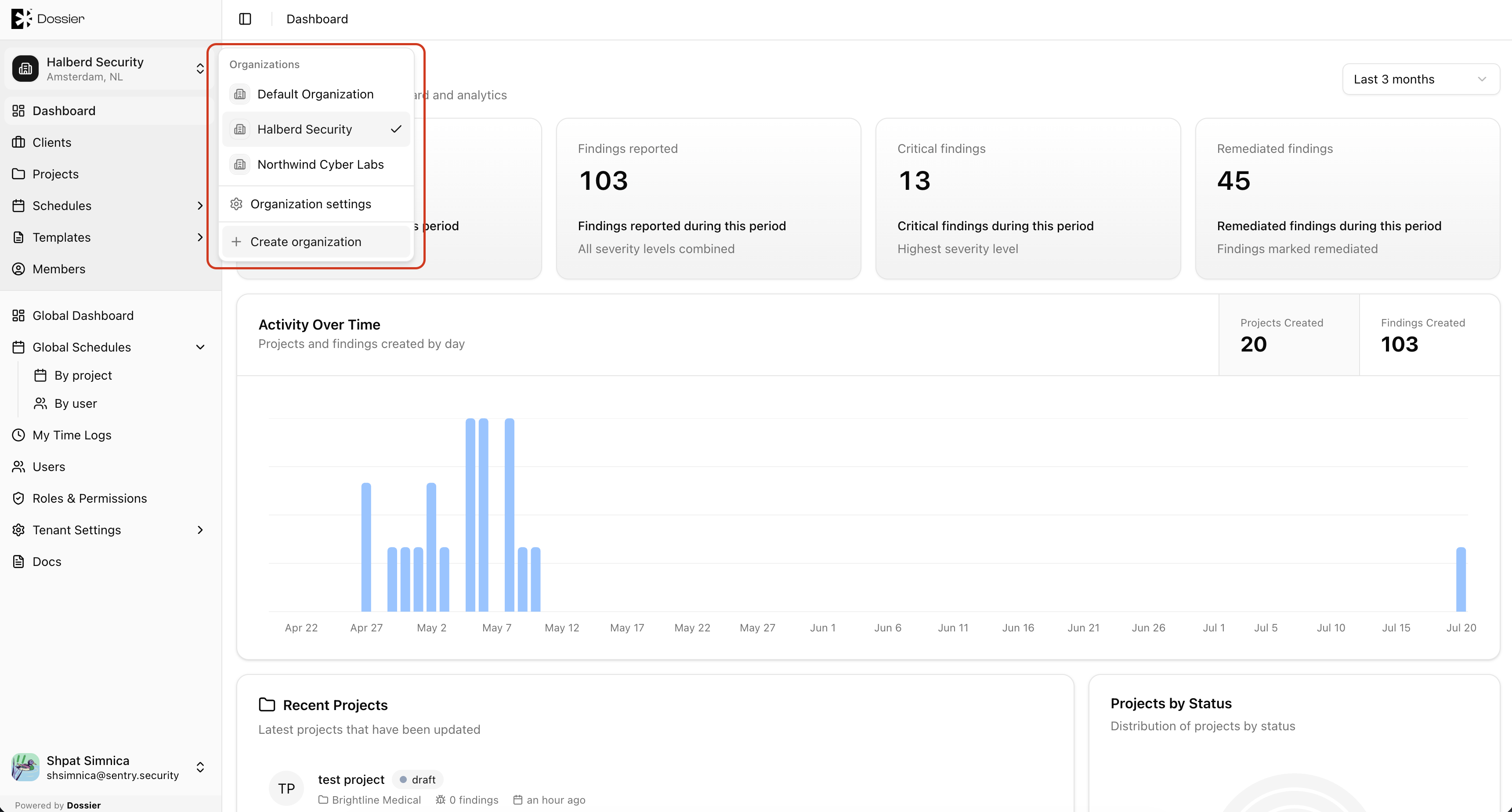
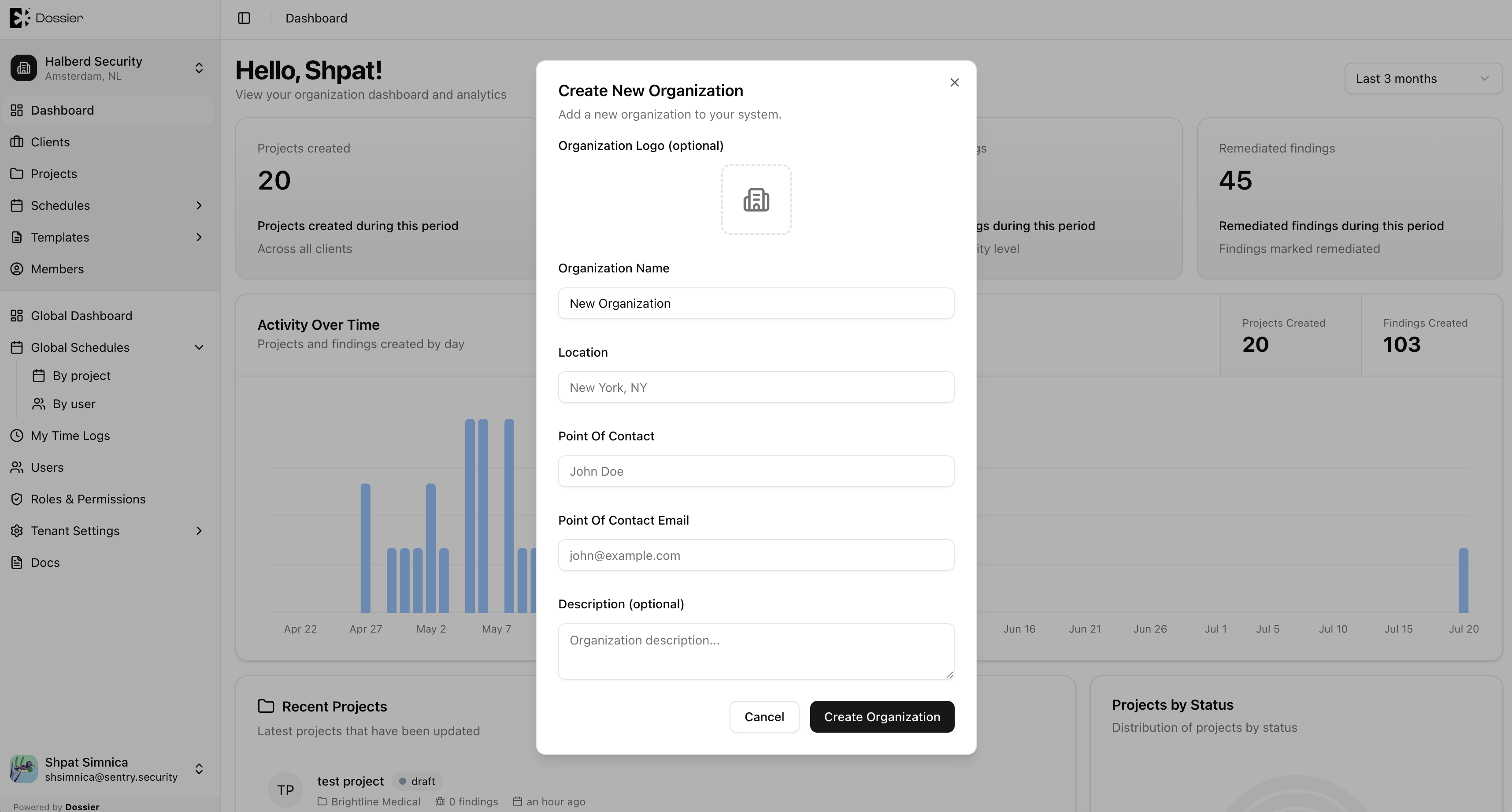
Step 2: Click New organization
Enter a name for the organization and click Create.
Step 3: Switch to the new organization
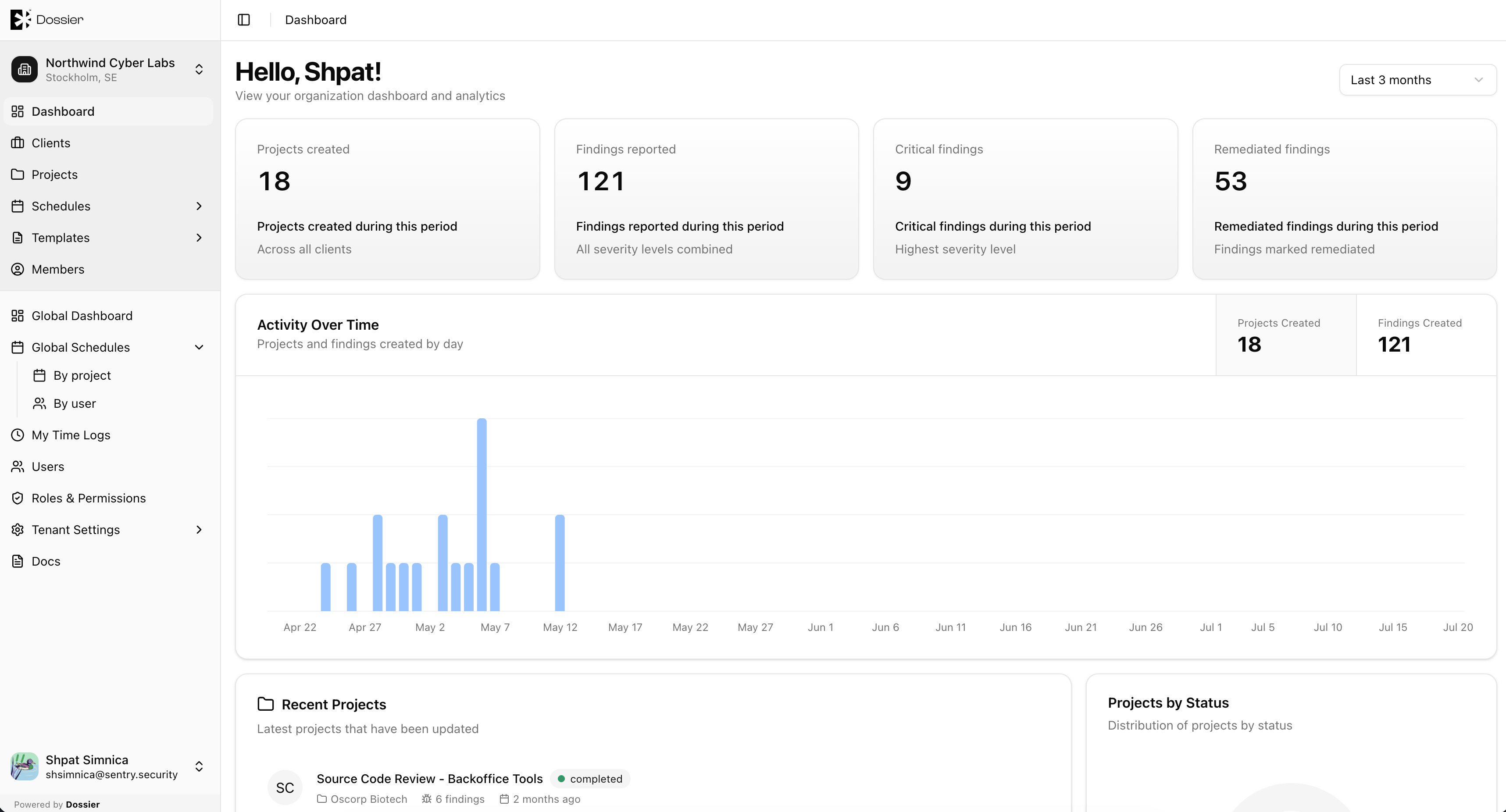
The sidebar switches to the newly created organization. You are redirected to its dashboard.
Updating Organization Details
Step 1: Navigate to organization details
From the org switcher, select Organization settings (or navigate to /organizations/:id/details).
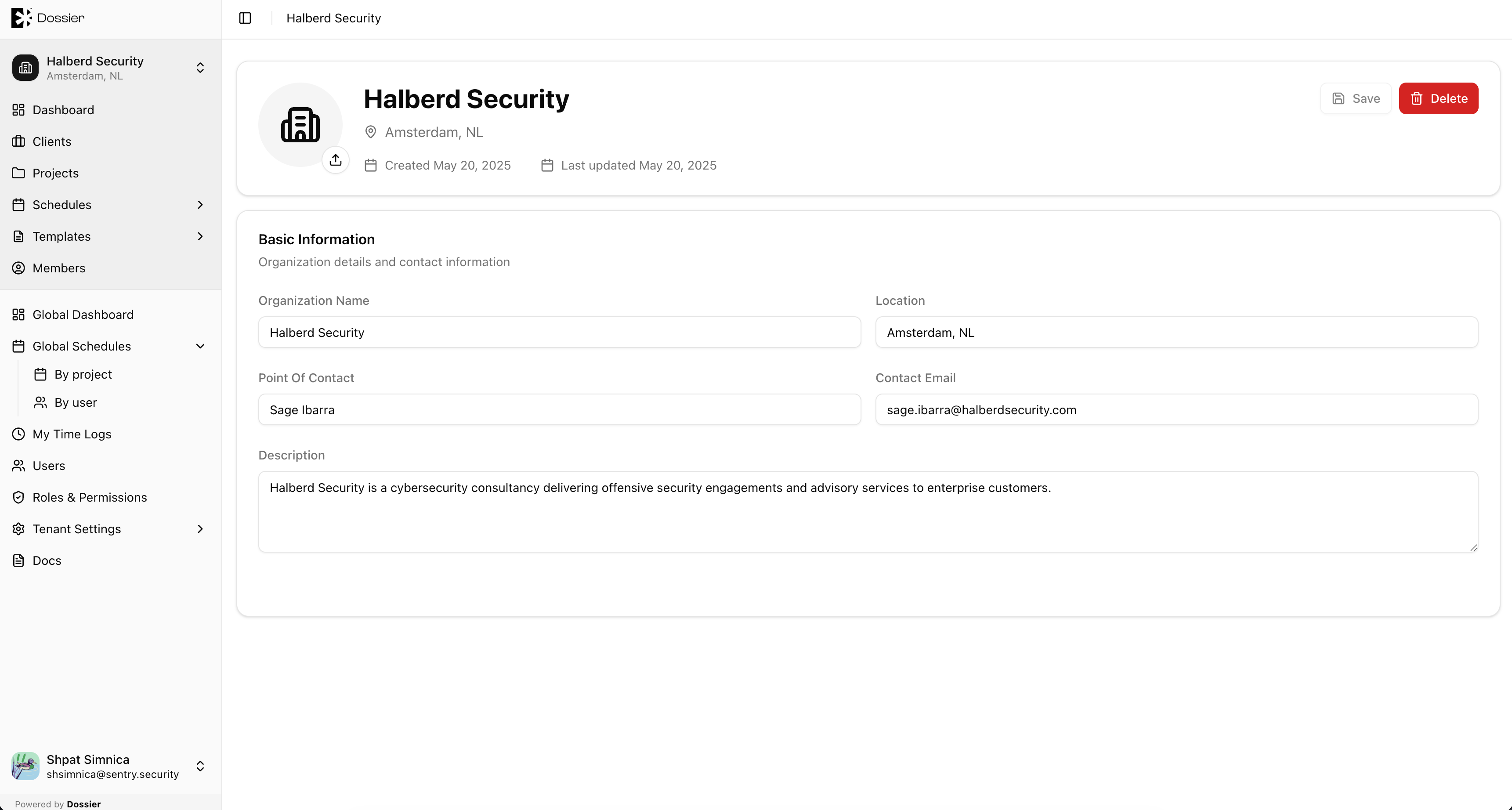
Step 2: Update fields
You can update:
- Name — The organization display name.
- Address — The organization address.
- Logo — Upload or replace the organization logo.
Click Save to apply changes.
Switching Organizations
Use the sidebar org switcher to move between organizations. Dossier remembers your last selected organization in a cookie and opens it on your next visit.
Deleting an Organization
Step 1: Go to organization details
Navigate to the organization settings page.
Step 2: Click Delete
A confirmation dialog appears warning that all clients, projects, and templates within the organization will be permanently deleted.
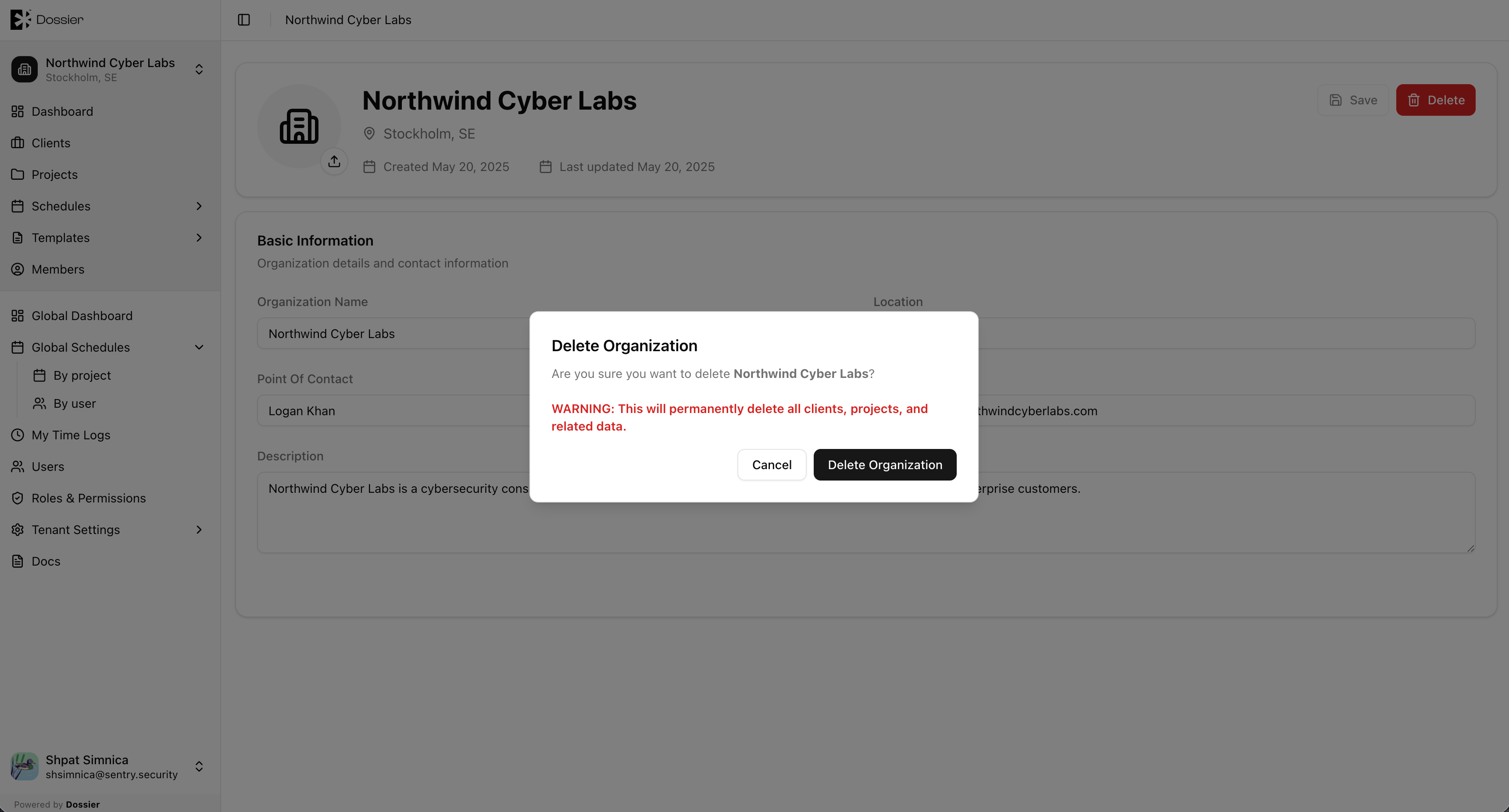
Step 3: Confirm deletion
Click Yes to permanently delete the organization and all its data.
Deleting an organization is permanent and cascades to all clients, projects, findings, assets, templates, and reports within it. This action cannot be undone.